
SportsPick

Navigate to https://venueadmin.sportspick.com.au
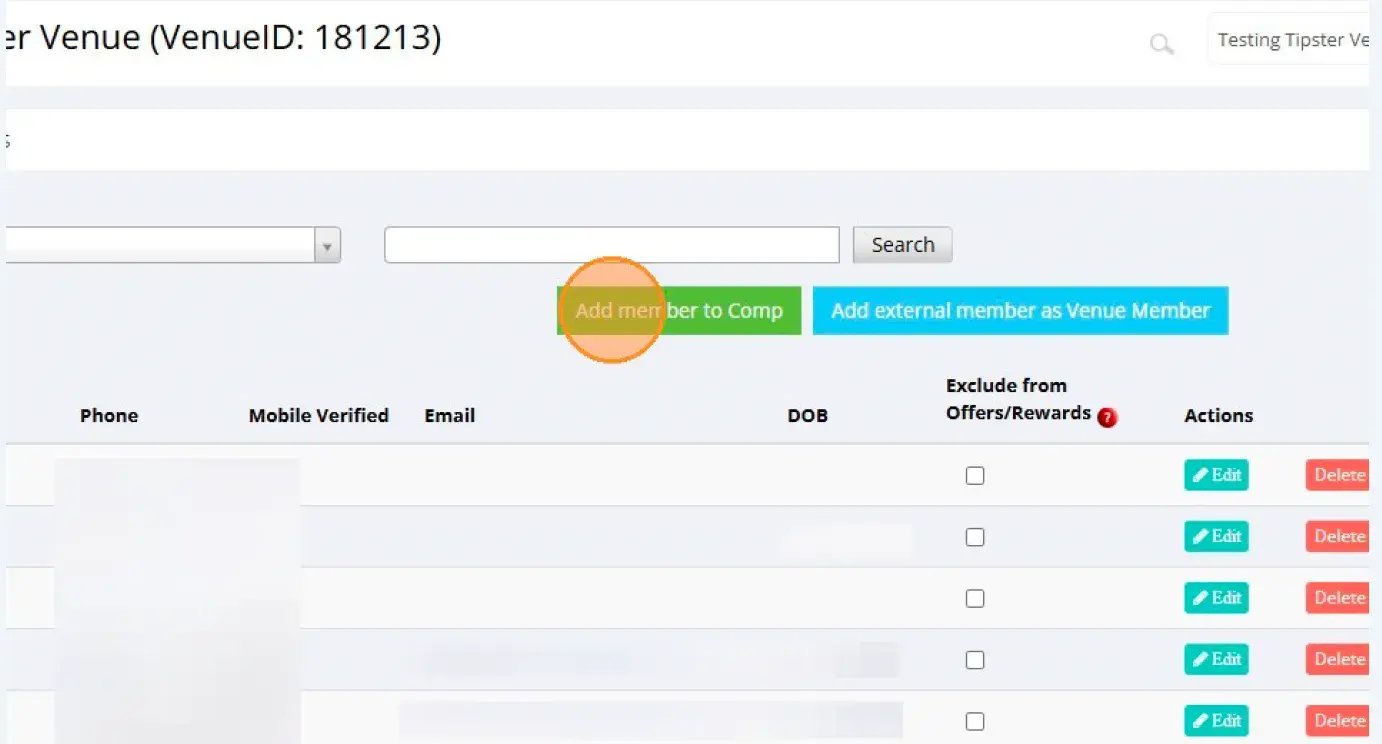
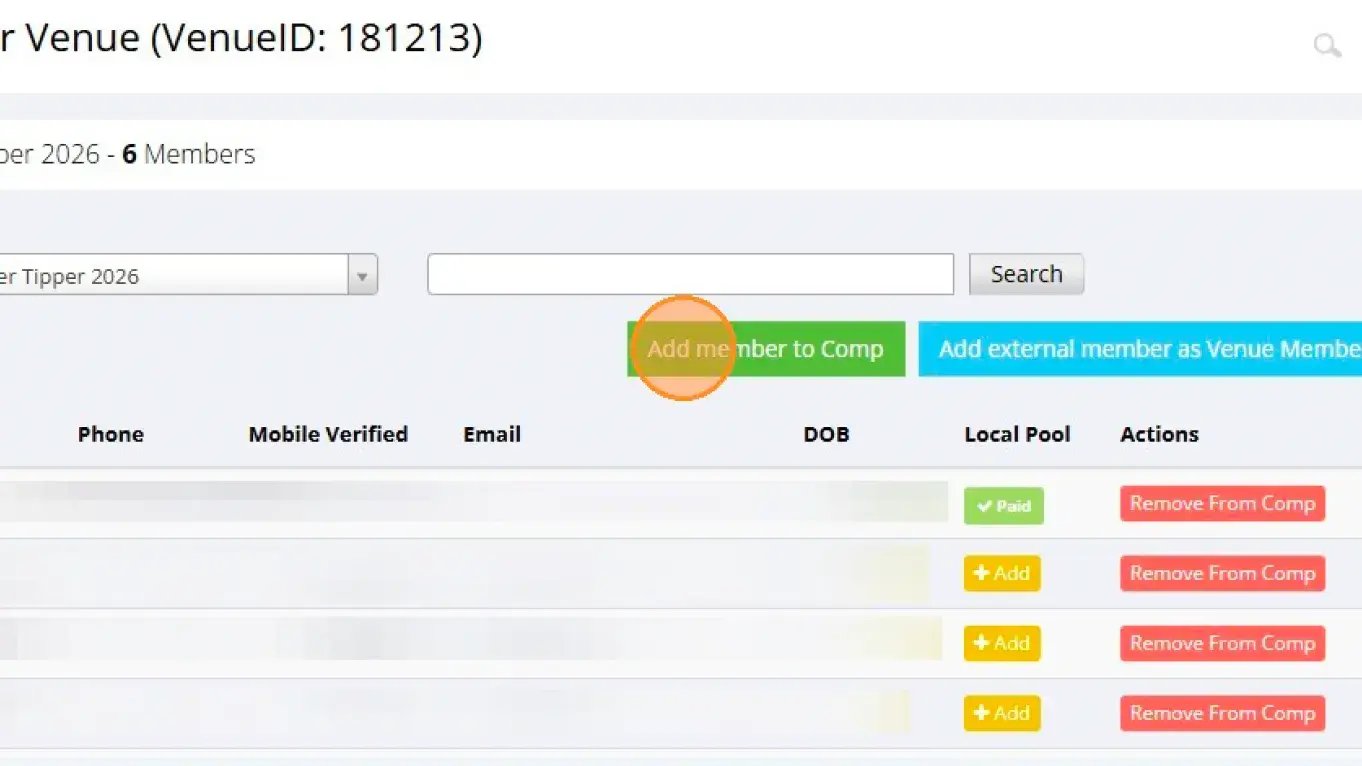
You'll see the addition of two new buttons to this screen; "Add member to Comp", and "Add external member as Venue Member".
Add member to Comp - This will allow you to add a member to your Tipping Competition, regardless of whether they are in your member database or not.
Add external member as Venue Member - This will move an account to your member database, allowing them to count as "Local" for purposes like Quizard and Lucky Win.
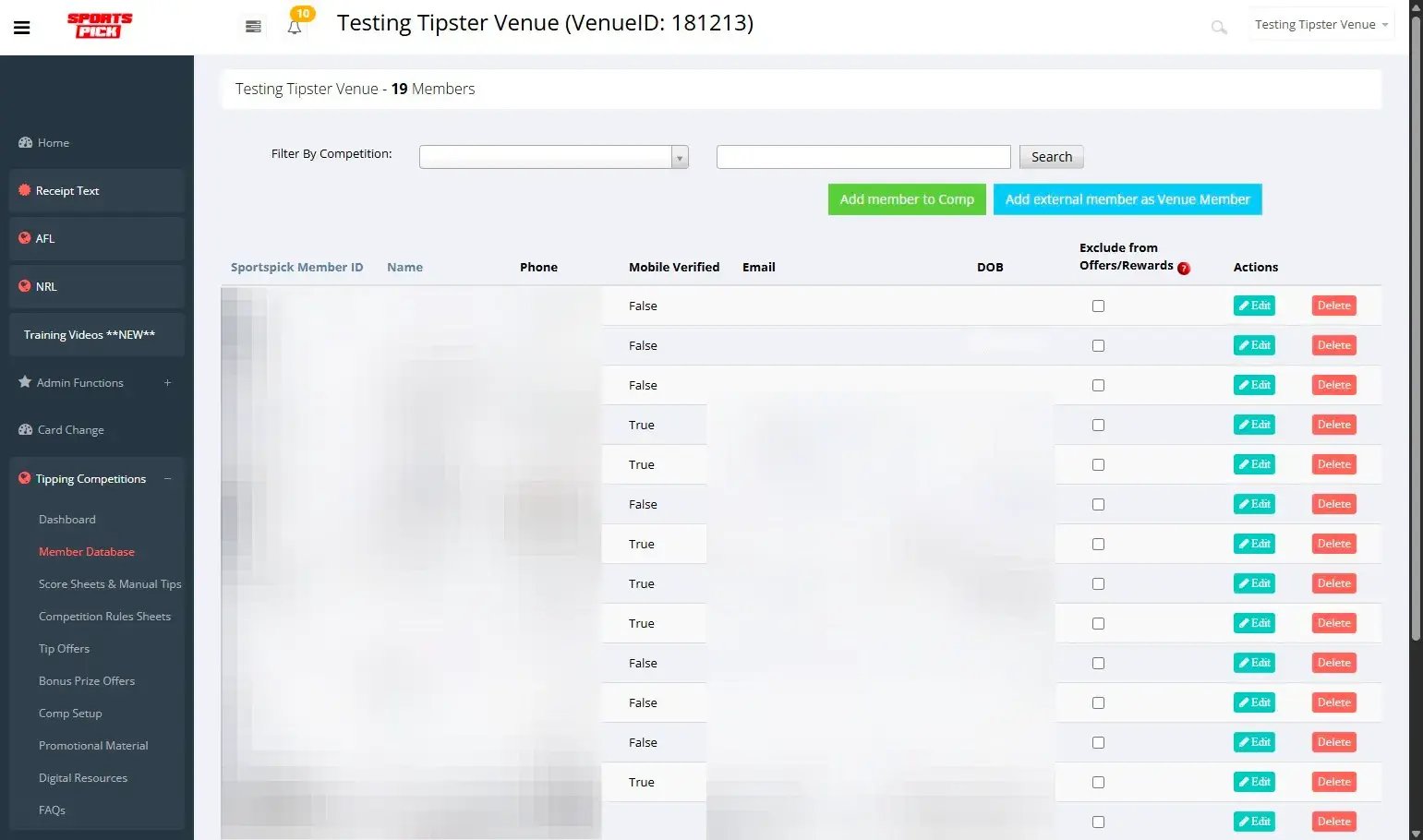
This will guide you through adding a Member to your Competition; note that the process for adding an external Member is the same.
Click "Add member to Comp"
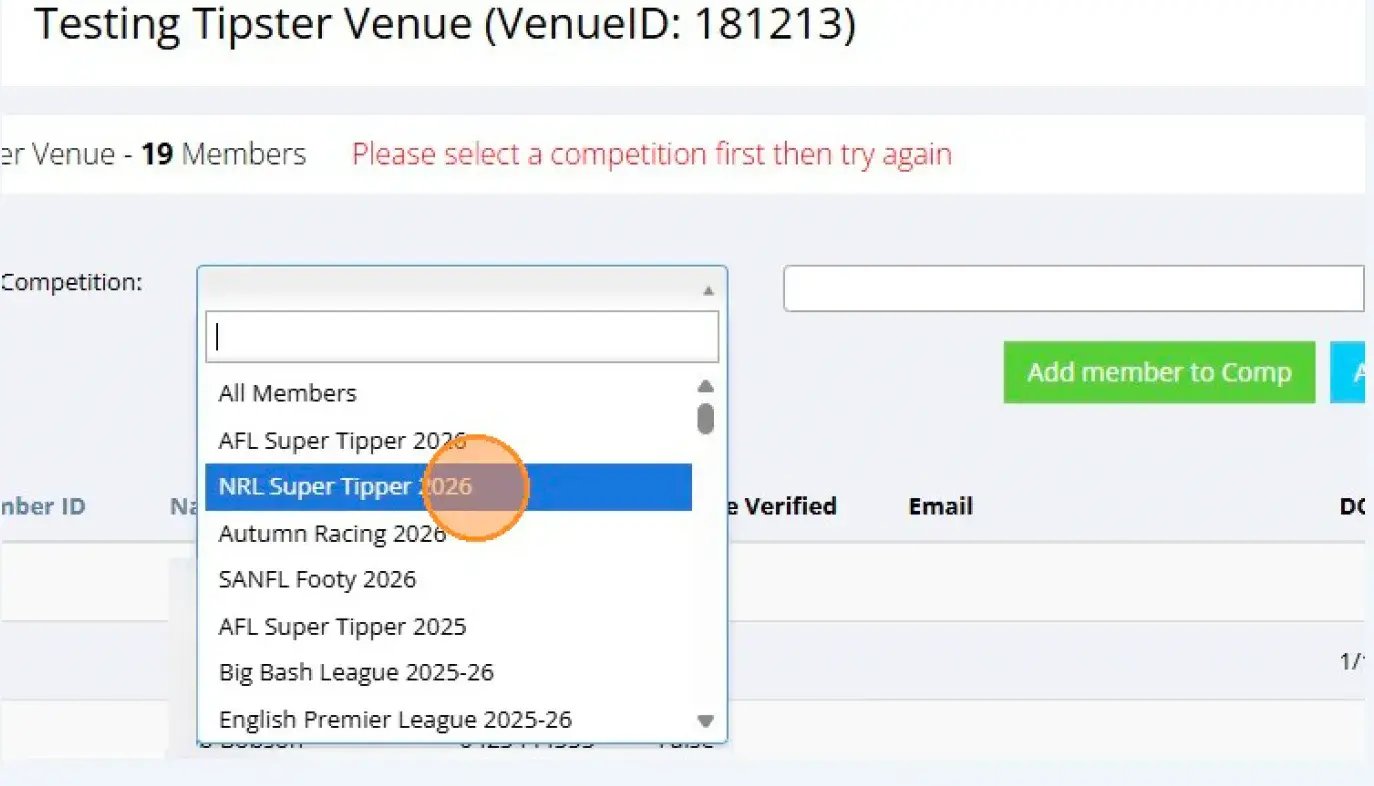
 Step 3: Select the Tipping Competition
Notice the error in red; we need to select which Competition first!
Use the Filter dropdown to select the Competition; this example uses NRL.
Click "Add member to Comp"
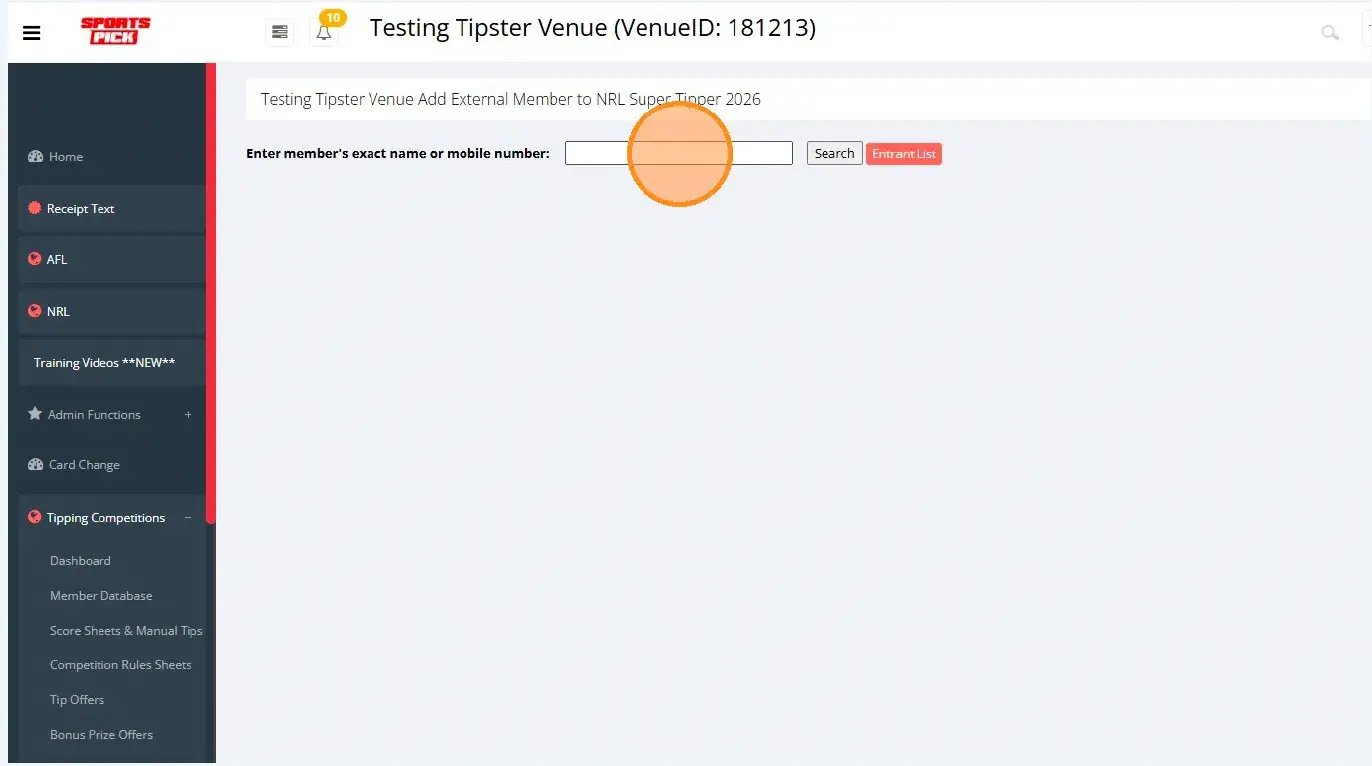
Enter the members exact name or mobile number here.
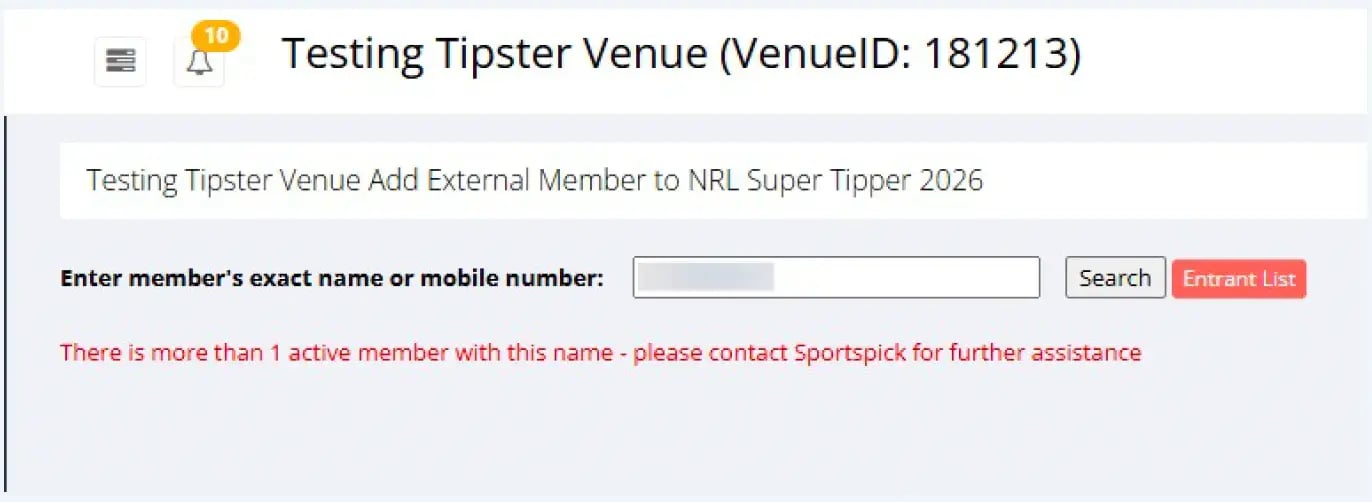
 If you're searching by name, it may return with multiple accounts, and you will see the following error.
Searching by mobile will generate a better result.
 Enter the mobile number and click Search.
This time only one member has loaded! Select Add to Comp on the right.
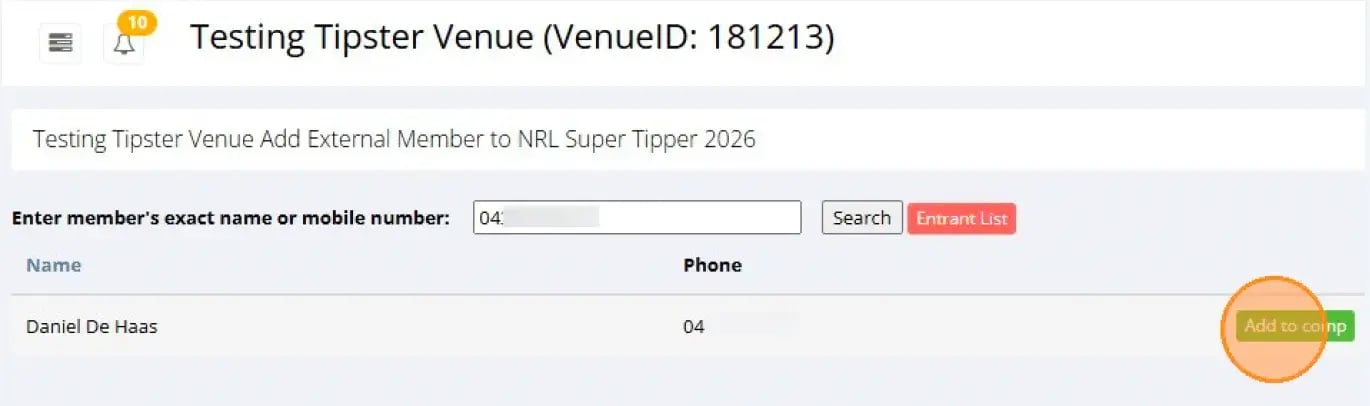
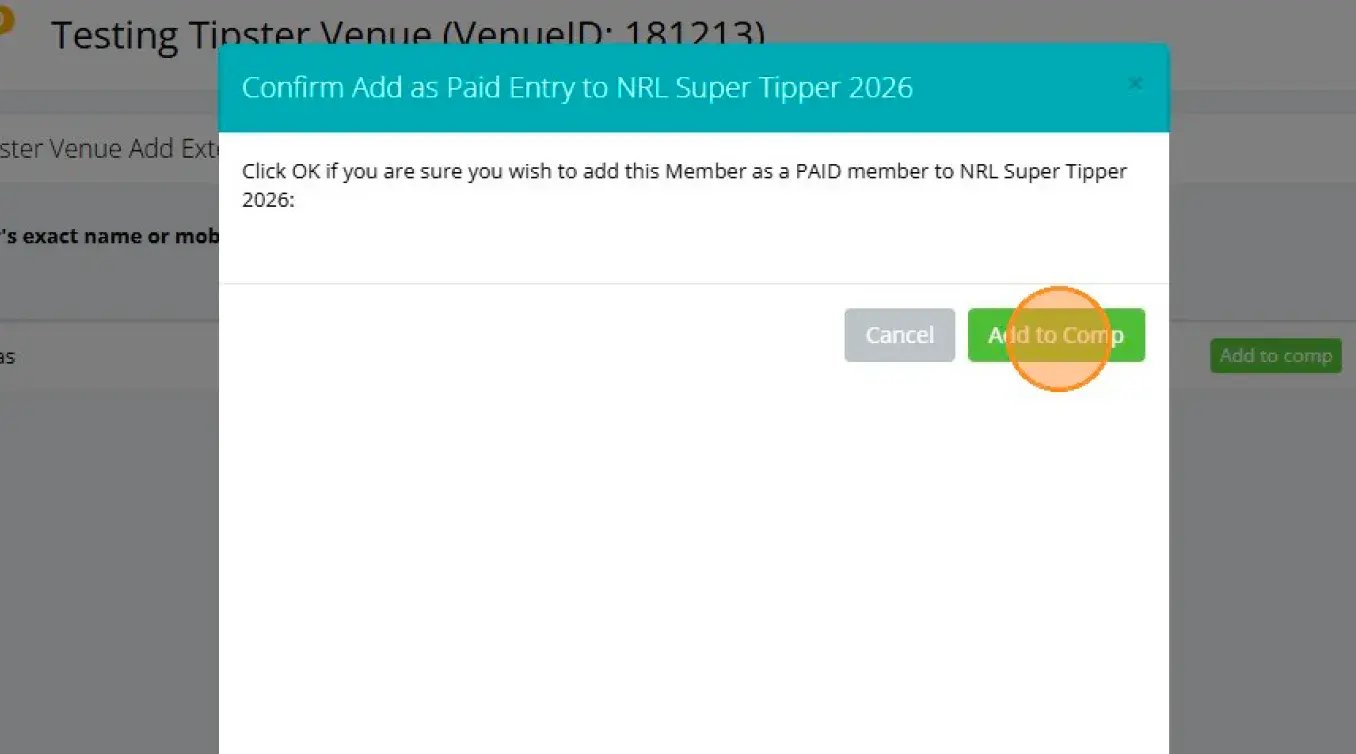 A confirmation popup will appear; if you are using this process, this will automatically mark the member as PAID. Confirm the addition, and the member is now in your NRL Comp!