SportsPick's guide to non-racing tipping competition setup.
Click on the links below to view the walk-through:
Comp Set Up
Customers
Offers
How to create your footy tipping competition
-
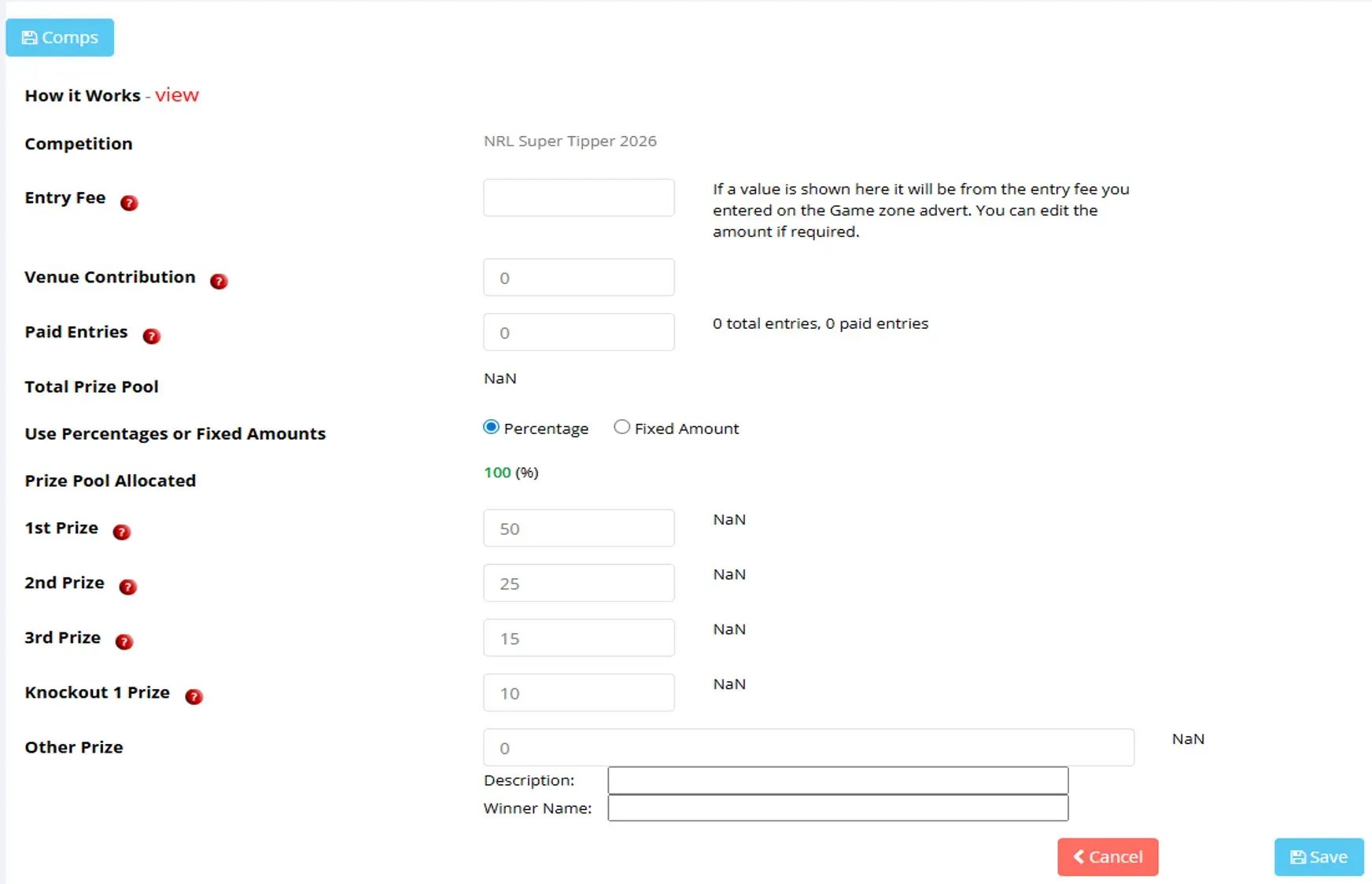
Enter the Entry Fee in the box corresponding to "Entry Fee"
-
If you have a venue contribution to the prize pool, add it into the "Venue Contribution" field. Note that this needs to be populated if you have a fixed prize pool
-
"Paid Entries" field is updated automatically and is reviewed at end of season
-
Select "Percentage" or "Fixed Amount" to calculate the prize pool
In the Prize Pool Allocation section:
-
If you've selected "Percentage", all prize value needs to equal 100%. Knockout comp can be a percentage of the prize pool. Put 0 if you are not running a Knockout comp.
-
If you've selected "Fixed Amount", it must add up to the value of the "Venue Contribution" field.
-
Click "Save"
How to create a TV advertisement
-
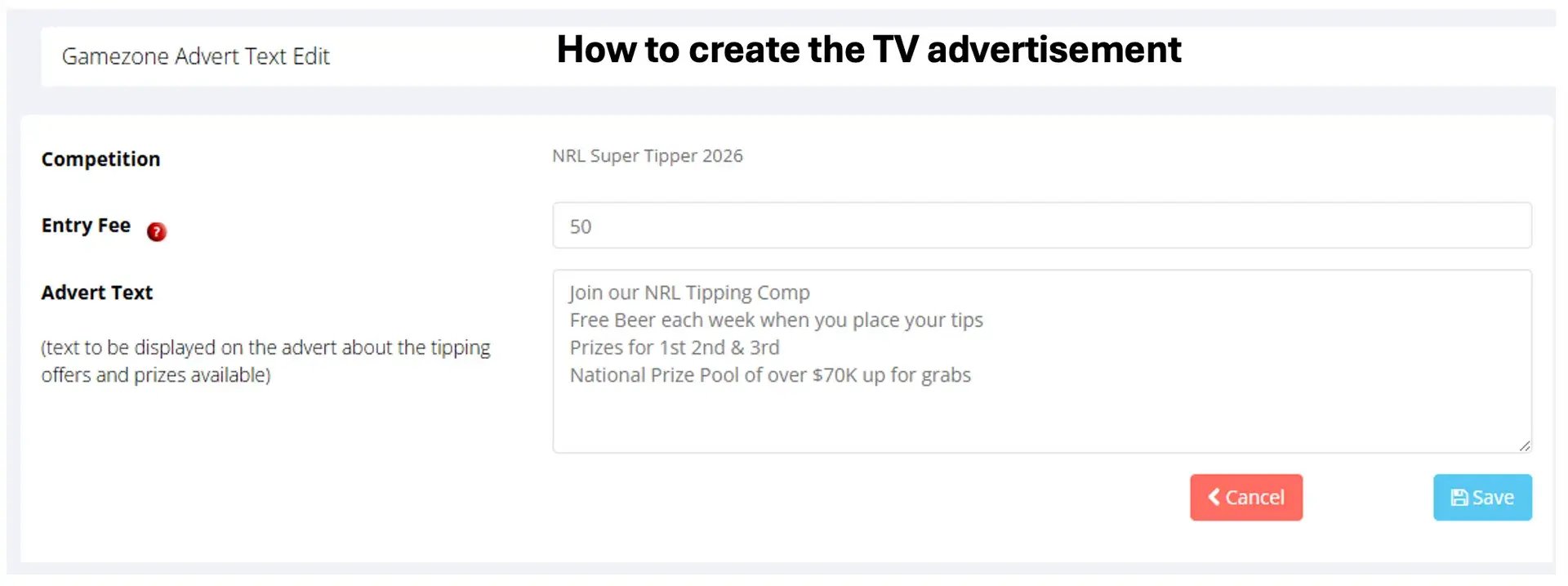
Enter the Entry Fee in the box corresponding to "Entry Fee"
-
Write your ad or call to action message in the "Advert Text" field box
-
Click "Save" to process
How to send an SMS
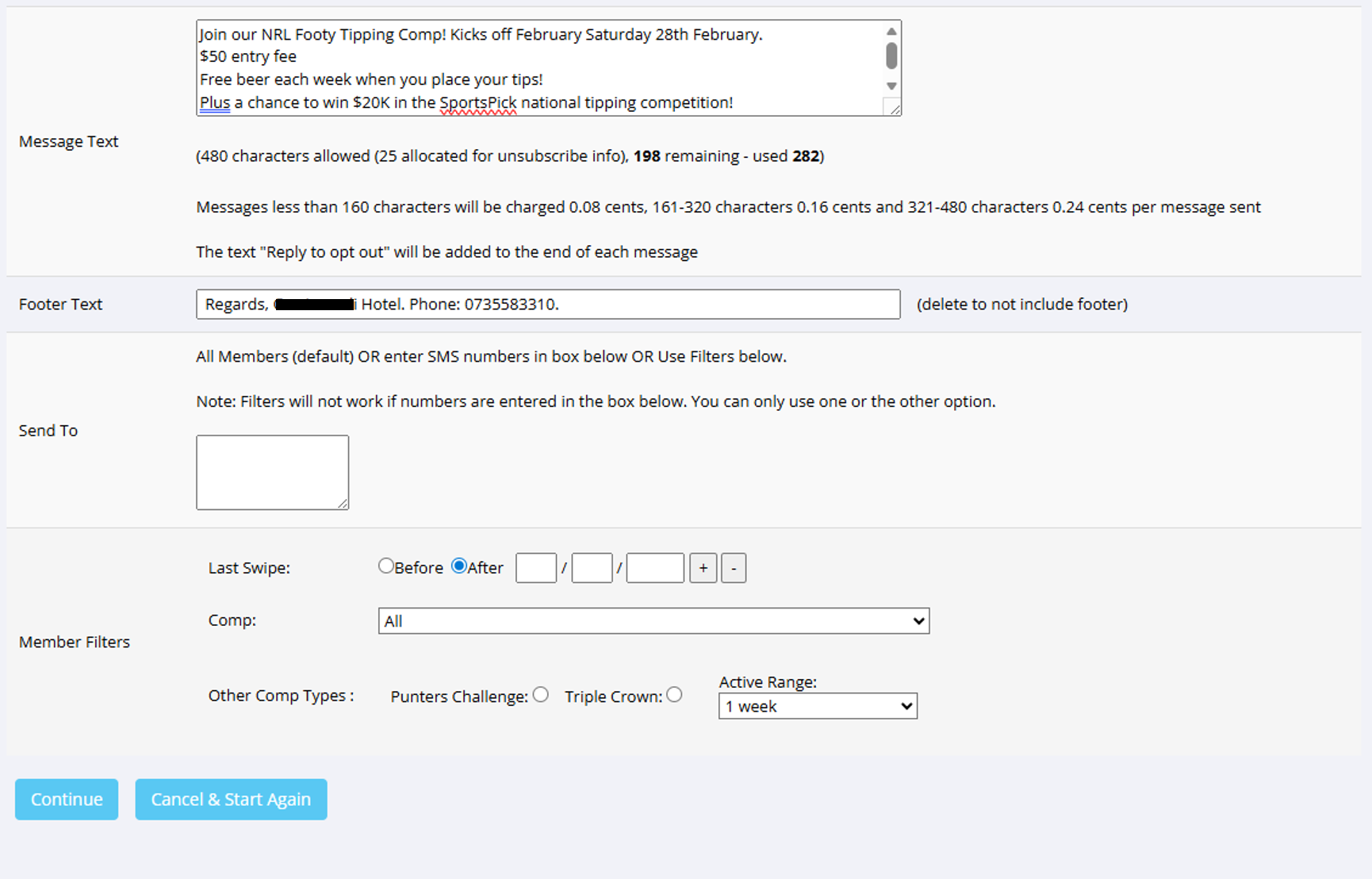
-
"Message Text" - Write your message in this box.
-
"Footer Text" - Use this space to sign off as your venue. For example "From Australia Hotel"
-
Send to Members. Choose between entering specific SMSs (using the "Send To" box) or using the member filters (selecting from the filters to determine the segment of members you want to send an SMS to.
-
Click "Continue" to send.
Note that charges apply for SMS sends.
How to allocate members to your local competition
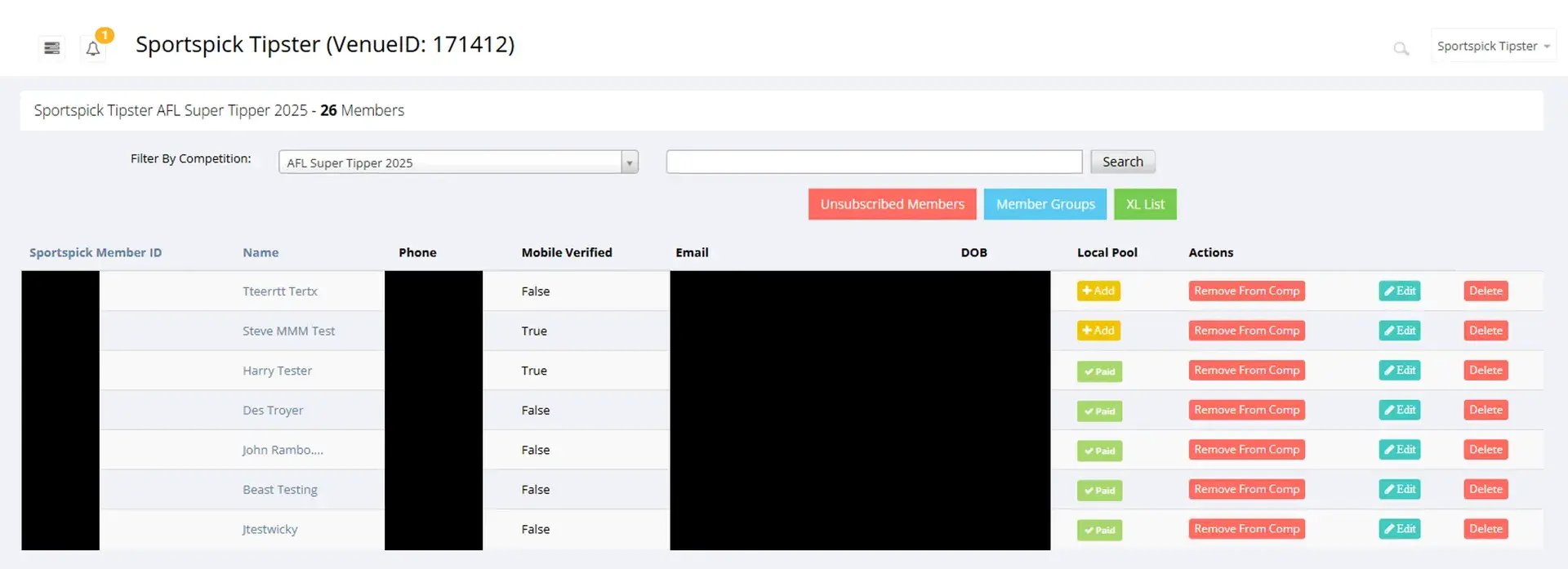
IMPORTANT: Complete this process after Round 1. Doing so ensures that members are eligible for your local prize pool.
-
Select “Tipping Competitions”.
-
Select “Sportspick Database”.
-
Select the competition that you want to add members into, in the dropdown box.
-
Go down the list and Select “Add” to everyone who’s paid your local venue comp entry fee. All unpaid tippers will have an asterisk * next to their name which means they’re ineligible for local prizes, but eligible for National Prize Pools only.
*Note: Tippers register for a competition on the tipping terminal by placing a set of tips. The following day – Tippers who have tipped will appear in your competition database to be added to your local competition using the process above.
How to print your local venue scoreboard
NOTE: If you have the SportsPick digital signage, your competition scoreboards will be automatically generated, taking the hassle out of manually updating this engagement tool for your members.
However, if you would like to print out the leaderboards, follow these steps.
-
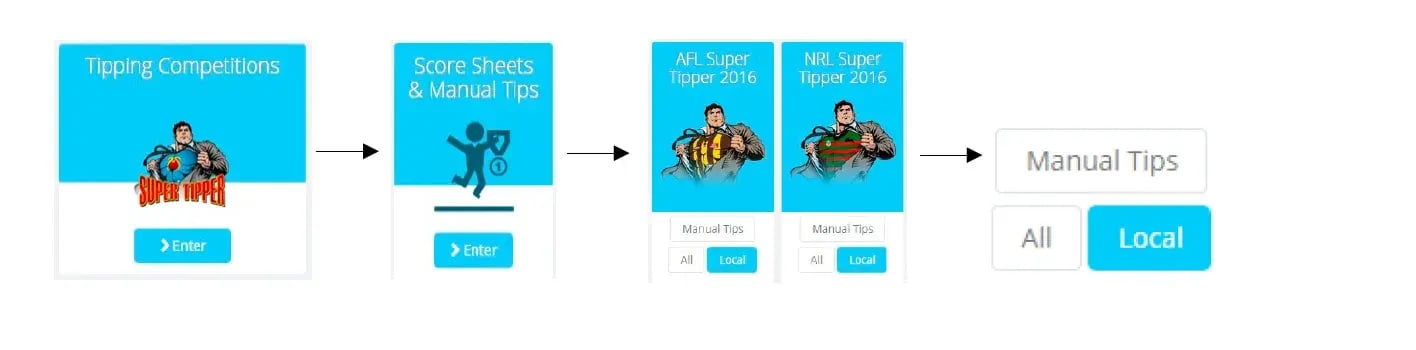
Select “Tipping Competitions”.
-
Select “Score Sheets & Manual Tips”.
-
Find your competition, Select “Local”.
-
The scoreboard should appear, Select “Print”.
Setting up a tip offer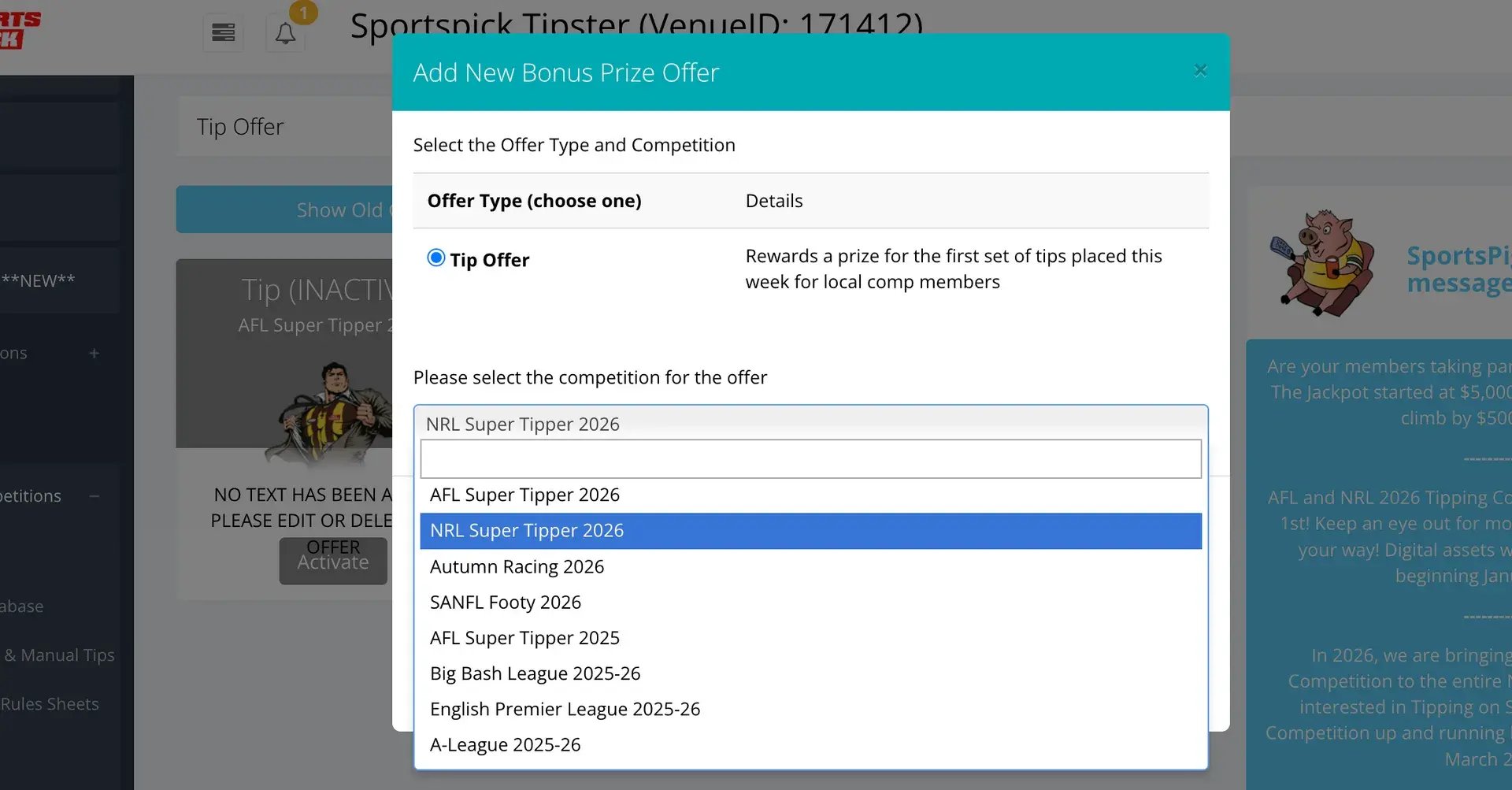
This covers the Tip Offer. You can configure this to entice members to return, with a reward for their first tips each week.
From the menu on the left, select
-
"Tipping competitions"
-
Then, "Tip offers"
-
Click on "Add New"
-
When the "Add New Bonus Offer" screen pops up, choose the competition that you wish to attach the offer to e.g. NRL Super Tipper 2026. Make sure that the year is correct
-
Click on "Submit".
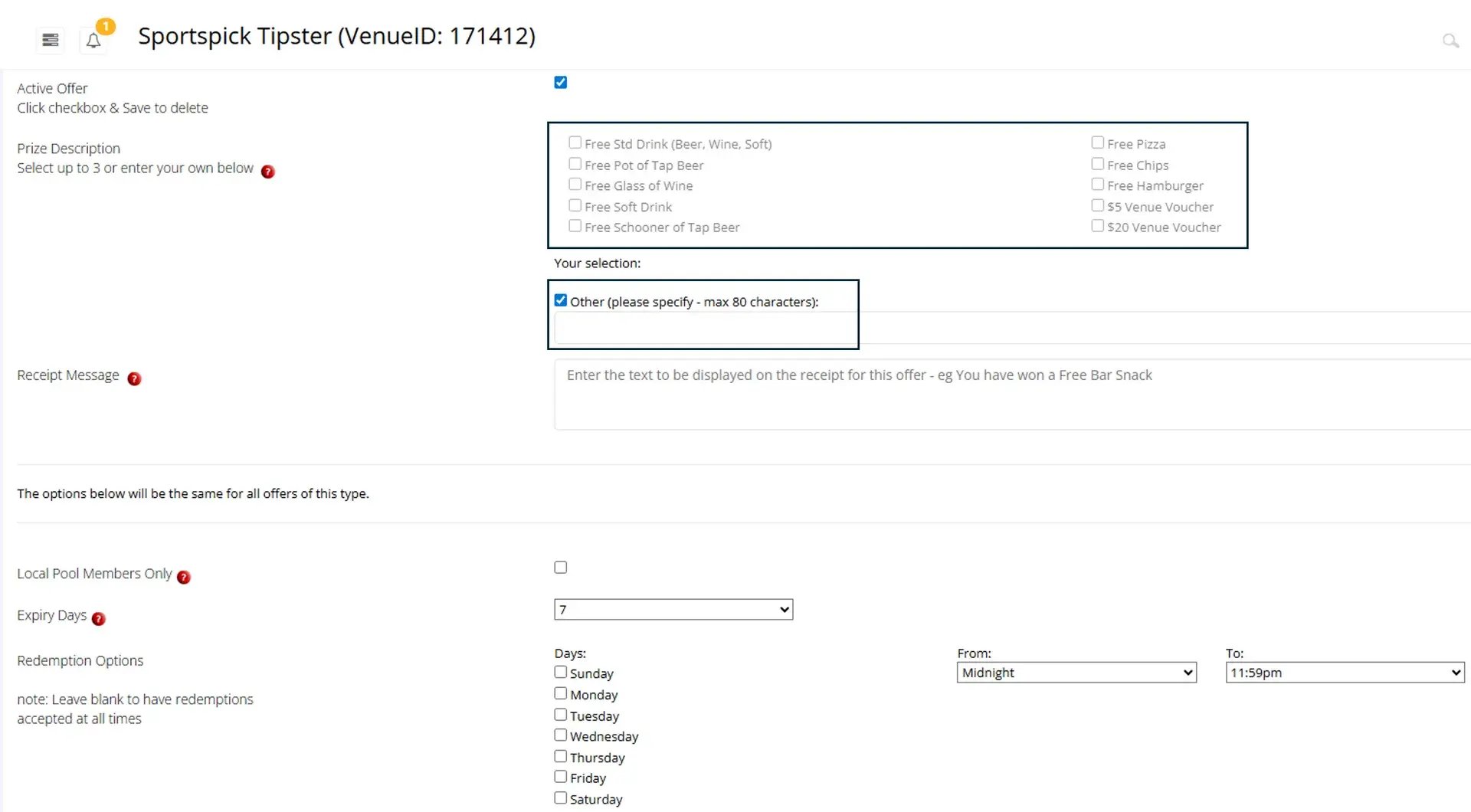
Once your offer is created, you'll need to configure the details,
- Select "Active Offer" check box to activate the offer in question
- Select from one of the preset "Prize Description" check boxes or if your offer is "other" select that check box and enter in the details.
- In the "Receipt Message", enter what you want displayed on the receipts that tippers receive; this streamlines how they will be able to redeem their prize to your staff.
- Select the "Local Prize Pool Members Only" check box if you want the prize to be limited to Local Paid members only (see How to Allocate Members to Your Local Competition).
- In the section for "Expiry Days" and "Redemption Options", Set redemption day/time limits. Note that these will print on the receipts
- Click 'Save' to confirm
Setting up bonus offers
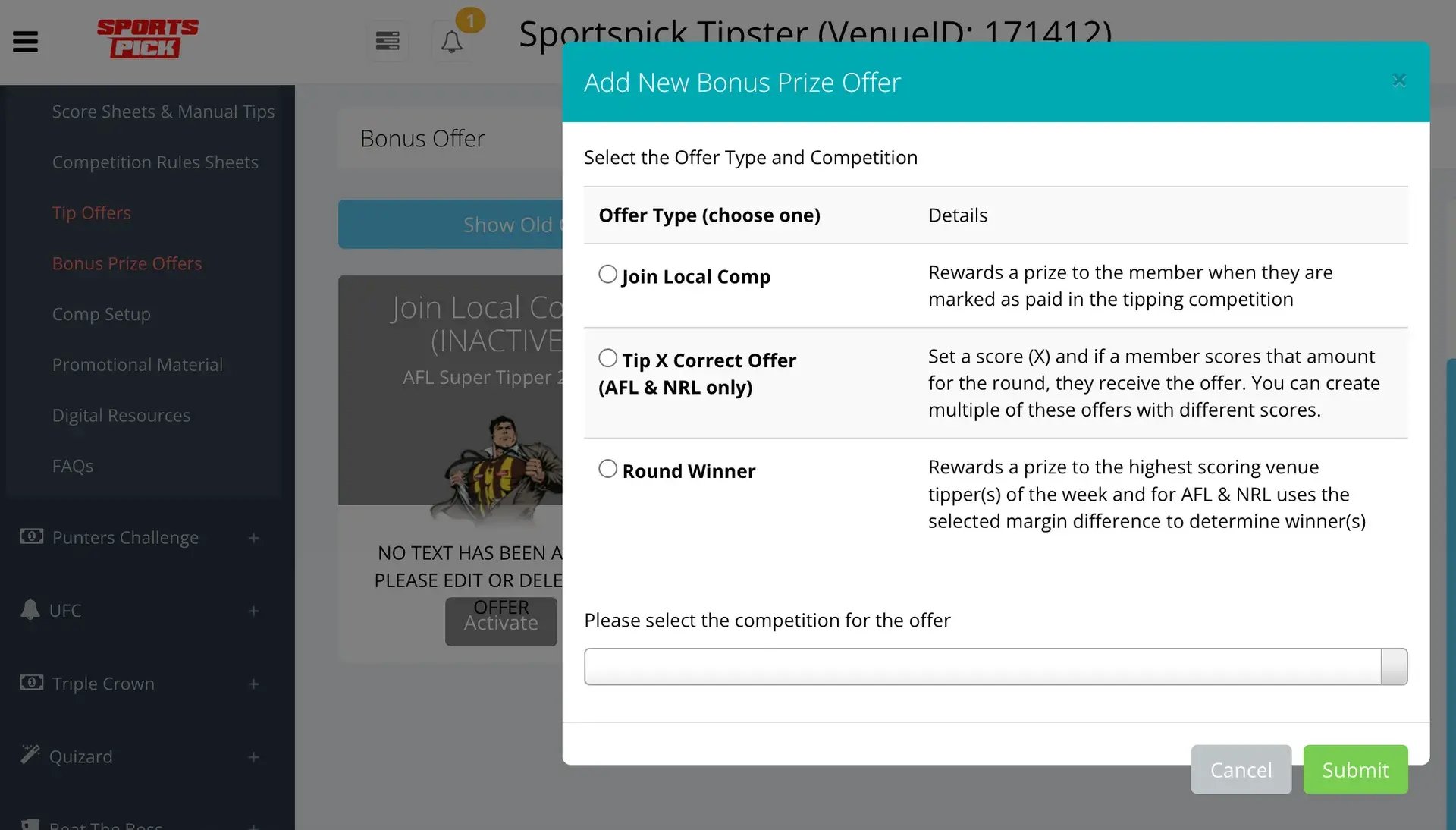
This can be set up for all non-racing tipping competitions. This section covers:
-
Tip X Offer (Members receive a prize for tipping X or above each week; venue to set the value)
-
Join Local Comp (Member receives this next time they tip, after being marked paid in Venue Admin)
-
Round winner (Highest weekly tipper gets this prize. This uses the first game margin as a tie-breaker; if still tied, all tied members receive the same prize)
To do so, follow the following steps to create your offer.
-
On the left hand menu, select "Tipping Competitions"
-
When the screen has loaded, select "Bonus Prize Offers"
-
Select "Add New Offer"
-
When the "Add New Bonus Offer" screen pops up, select your offer type
-
Choose the competition you would like this offer to apply to e.g. NRL Super Tipper 2026. Make sure you choose the correct year
-
Click Submit.
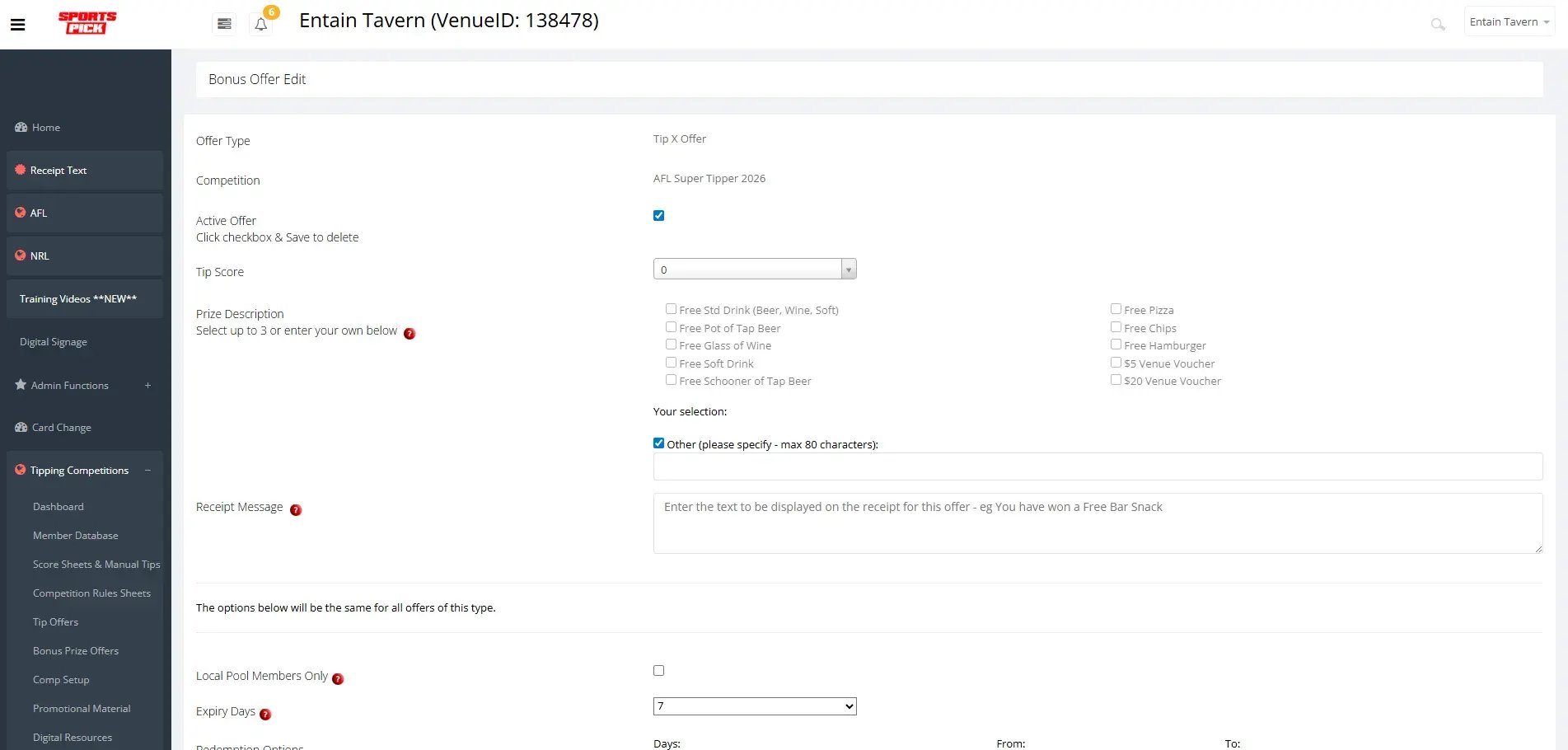
Once you've created your offer:
-
Select "Active Offer" check box to activate the offer in question.
-
In the Tip Score drop down, select the number of correct tips that you would like to reward members for.
-
Select from one of the preset "Prize Description" check boxes or if your offer is "other" select that check box and enter in the details.
-
In the "Receipt Message", enter what you want displayed on the receipts that tippers receive; this streamlines how they will be able to redeem their prize to your staff.
-
Select the "Local Prize Pool Members Only" check box if you want the prize to be limited to Local Paid members only (see How to Allocate Members to Your Local Competition).
-
In the section for "Expiry Days" and "Redemption Options", Set redemption day/time limits. Note that these will print on the receipts
-
Click 'Save' to confirm
Setting up Beat the Boss Offer
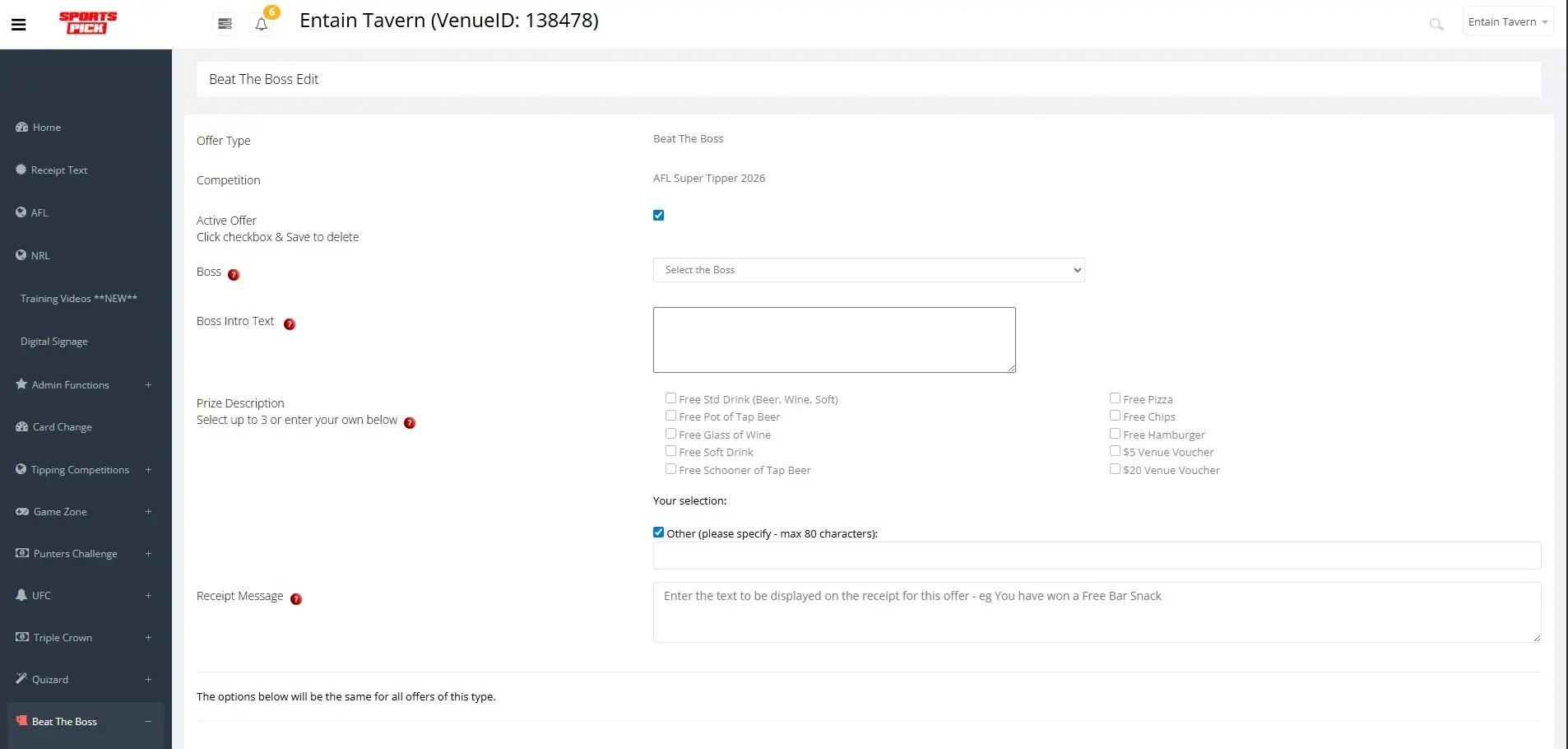
This section covers setting up the "Beat the Boss" offer, where members take on a venue's boss, and receives a prize for out-scoring the Boss in a Round.
-
On the left hand menu, select "Beat the Boss"
-
When the screen has loaded, select "Active Offer" check box to activate the offer in question.
-
Select the boss you would like your members to beat in the "Boss" drop down field
-
You can also craft a message in the "Boss Intro Text" box to personalise the competition to your members.
-
Select from one of the preset "Prize Description" check boxes or if your offer is "other" select that check box and enter in the details.
-
In the "Receipt Message", enter what you want displayed on the receipts that tippers receive; this streamlines how they will be able to redeem their prize to your staff.
-
Select the "Local Prize Pool Members Only" check box if you want the prize to be limited to Local Paid members only (see How to Allocate Members to Your Local Competition).
-
In the section for "Expiry Days" and "Redemption Options", Set redemption day/time limits. Note that these will print on the receipts
-
Click 'Save' to confirm